

Common Online Threats
The most common ways people lose accounts, data and privacy — and how to spot them early. Most incidents start with a small signal (a weird message, a new login alert, an odd browser behavior). The sooner you react, the less damage.
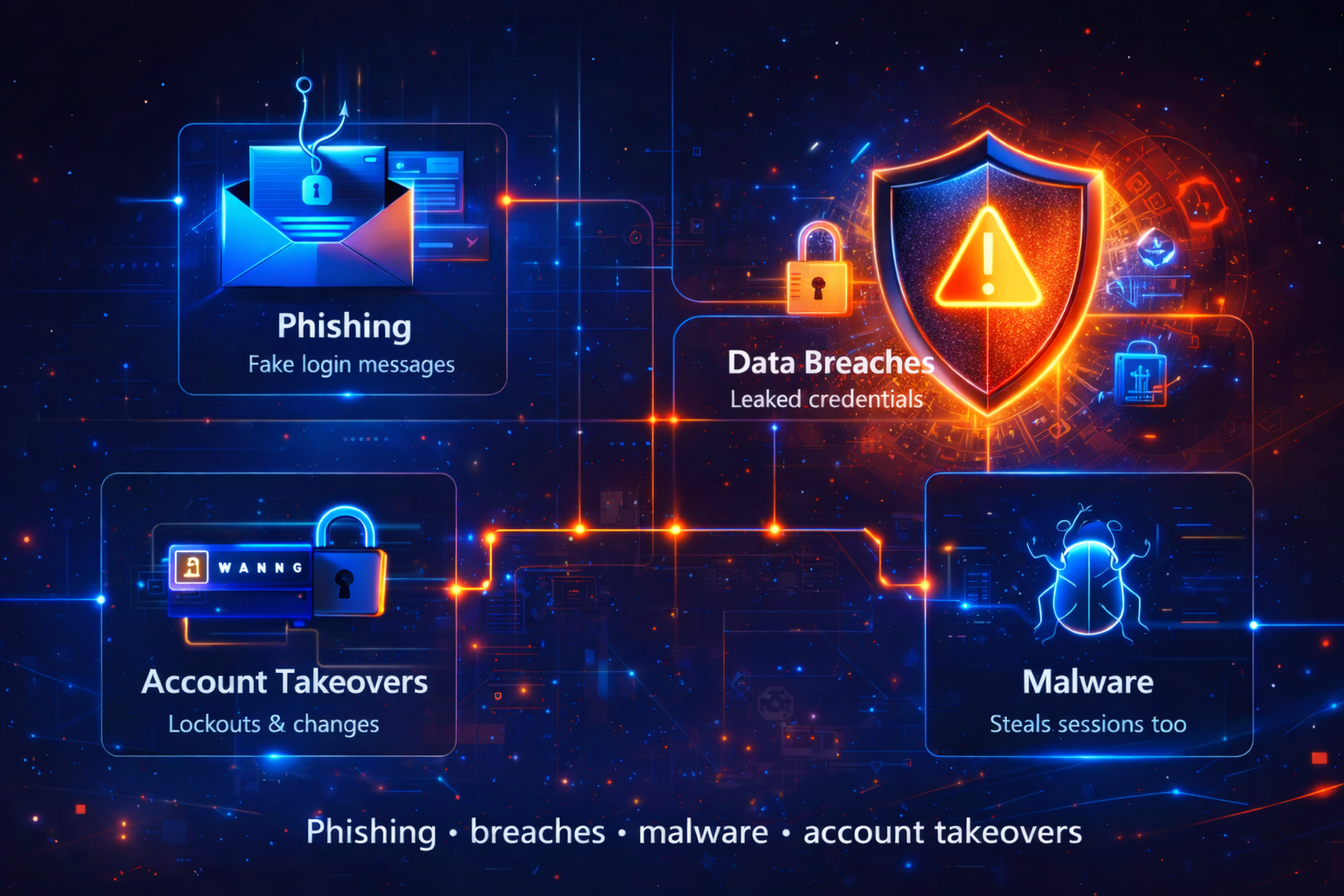
Phishing, breaches, malware, account takeovers
How to spot trouble early
Most incidents announce themselves. The trick is to recognize the “small weirdness” before you ignore it.
Message pressure
- Urgency, fear, countdowns, “final notice”.
- Unexpected invoices, refunds, or “payment failed”.
- Requests for password, OTP/2FA code, or card details.
Account signals
- “New login detected” you didn’t trigger.
- Password reset emails you didn’t request.
- Security settings changed without you.
Device/browser weirdness
- New extensions you don’t recognize.
- Popups that look like your bank/support.
- Sudden redirects to login pages or “verification” screens.
Rule: treat login links inside messages as suspicious by default. If it’s real, you can reach the service safely by typing the official site/app yourself.
Threat 1 — Phishing
A fake message or page that imitates a trusted service and pushes you into a login, payment, or “verification”.
What it is
The page can look legitimate — but it’s controlled by the attacker. The goal is access: credentials, OTP codes, or payment details.
- Often uses urgency: “verify now”, “locked”, “final notice”.
- Often uses look-alike domains (extra words, misspellings).
- Often asks for a code (OTP/2FA), not just a password.
Early signs
- It pushes you to act fast (fear + countdown).
- The domain looks “brand-ish” but not the real one.
- It requests password, OTP/2FA code, or payment details.
- It feels “off”: grammar, weird formatting, unexpected tone.
Safe move: do not use message links for login. Open the official site/app directly and check notifications there.
If you already clicked
- Stop and close the page. Don’t proceed with login/payment.
- Change the password on the real service (not through the message).
- Check for new rules/forwarding in email (attackers love this).
If you entered your password
- Change it immediately and log out of all devices.
- Update recovery email/phone if they were exposed.
- Enable 2FA on that account (see steps below).
If you shared an OTP/2FA code
- Assume the attacker can log in right now. Act fast.
- Change password + remove unknown sessions/devices.
- Regenerate backup codes and review security settings.
Threat 2 — Account Takeovers
What happens after an attacker gets access: they change settings, lock you out, and move fast.
How it happens
Most takeovers don’t start with “hacking”. They start with stolen passwords (breaches), phishing, or stolen sessions. After login, the attacker tries to secure the account for themselves.
- Change password and recovery email
- Add their own 2FA method
- Log you out of all devices
- Abuse saved cards, balances, or messages
Early signs
- “New login detected” emails you didn’t trigger
- Password reset emails you didn’t request
- Unexpected logout across apps/devices
- Security settings changed without you
If you see one of these: assume access is compromised and act immediately (password + sessions + 2FA + recovery).
Immediate steps (first 10 minutes)
- Change password on the real service (unique, strong).
- Log out of all devices / remove unknown sessions.
- Check recovery email/phone and remove anything unfamiliar.
If money/payment is involved
- Freeze cards / contact bank support through official channels.
- Review transactions and recent changes (addresses, payees).
- Change passwords on email first (it controls resets).
After you regain control
- Enable 2FA and save backup codes securely.
- Remove suspicious extensions/apps connected to the account.
- Check email forwarding rules and “filters”.
Threat 3 — Data Breaches (Password leaks)
A breach is when a service leaks data (emails, usernames, hashed passwords). Attackers reuse it elsewhere.
Why breaches matter
- Attackers try the same password on other services (credential stuffing).
- Your email becomes a “target handle” for phishing and resets.
- If you reuse passwords, one breach can unlock many accounts.
Early signs
- Security alert emails from services you rarely use.
- Random password resets you didn’t initiate.
- Login attempts from unfamiliar locations/devices.
Best defense: unique passwords + 2FA on important accounts. That breaks “reuse attacks”.
Threat 4 — Malware (Device compromise)
Malware steals. Sometimes it steals your password. Often it steals your session — meaning it can bypass a login.
Early signs
- Sudden slowness, browser crashes, weird ads or redirects.
- New extensions/apps you didn’t install.
- Logins happening even after you changed passwords (session theft).
Immediate steps
- Remove suspicious extensions.
- Run a full scan (OS + browser).
- Update OS, browser, and plugins.
Important: if malware is suspected, treat the device as untrusted until cleaned. Change critical passwords from a clean device.
How to set up 2FA (the practical version)
2FA is not “perfect”. But it blocks most password-only attacks. Use an authenticator app when possible.
Step 1 — Find the setting
- Open the service’s Security or Account settings.
- Look for “Two-factor authentication”, “2FA”, “Multi-factor”, or “Verification”.
- Choose Authenticator app if offered.
Step 2 — Add the method
- Scan the QR code with an authenticator app.
- If no camera: enter the setup key manually.
- Enter the 6-digit code to confirm it works.
Step 3 — Backup & recovery
- Save backup codes (offline or password manager note).
- Verify your recovery email/phone is correct.
- Never share OTP codes in messages. Real support will not ask for them.
Note: SMS 2FA is better than nothing, but authenticator apps (or security keys) are typically stronger. The most important thing is enabling 2FA on email, banking, and any account that can reset other accounts.
Early detection checklist
Use this as a quick self-audit. It’s not a scanner — it’s a habit builder. Check what applies.
Simple rule: protect email first. If someone controls your email, they can reset most of your other accounts.