

Protection Practices
Real-world security isn’t about “advanced hacking tools”. It’s about habits and layers. Most account breaches happen because one basic protection is missing — weak passwords, no 2FA, or unsafe browsing.
Below you’ll find practical, step-by-step protection practices you can actually follow. No theory — only what truly reduces risk day-to-day.
Baseline: start with Password Manager + 2FA. These two alone cut most “account takeover” risk. Then add VPN for public Wi-Fi and email aliases for privacy & leak-control. Antivirus comes after that, as a device safety layer.
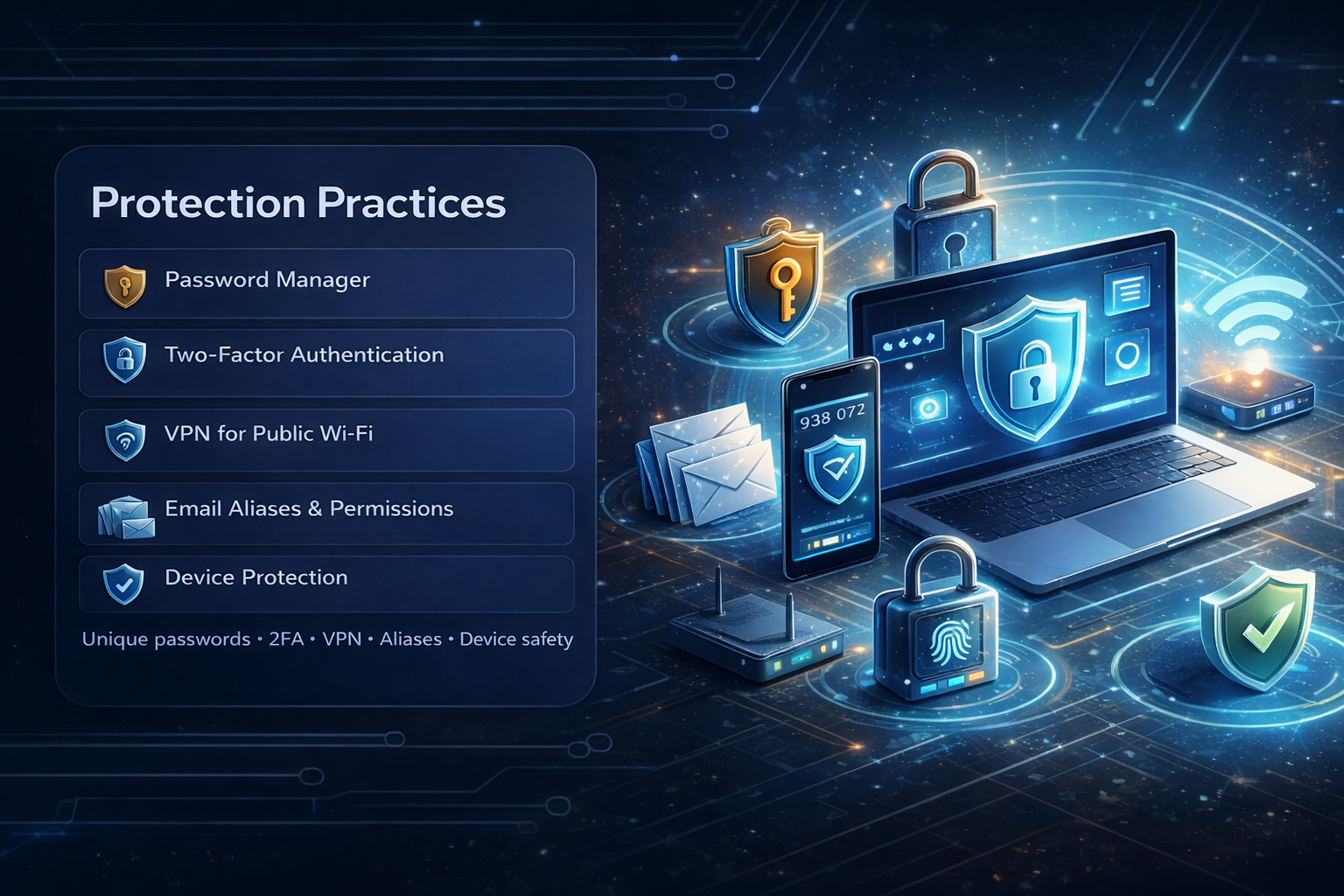
Passwords • 2FA • VPN • Aliases • Device safety
1. Password Manager
Your strongest “baseline upgrade”. The goal is simple: unique passwords everywhere, without effort.
Why it matters
- ✓Breaks password reuse — the #1 reason one breach becomes many.
- ✓Generates long, random passwords (you never have to remember them).
- ⚠️Reduces phishing: managers usually won’t autofill on look-alike domains.
Priority: secure your email first. Email controls password resets for everything else.
How to do it (clean setup)
- 1Create a strong master password (long phrase, not a single word).
- 2Enable 2FA on the password manager itself.
- 3Change passwords starting from email → banking → socials → shopping.
- !Turn on autofill carefully: only when domain matches exactly.
Quick wins
- ✓Update the top 5 accounts first (email, bank, Apple/Google, Facebook, Instagram).
- ✓Use the generator every time. Never “invent” a password again.
Common mistakes
- ✗Saving passwords only in the browser (no master lock / less control).
- ✗Reusing the master password anywhere else.
Good rule
- 🧠If you can remember it easily, it’s probably too weak (for important accounts).
- 🔁If you use it twice, it’s already risky.
2. Two-Factor Authentication (2FA)
Even if a password leaks, 2FA blocks most real-world takeovers. Treat it as “seatbelt for accounts”.
Best methods
- ✓Authenticator app (recommended baseline).
- ✓Security key (strongest, if you want “pro mode”).
- ⚠️SMS is better than nothing, but weaker than app/key.
Enable on
- ✓Email (first), banking, Apple/Google.
- ✓Socials (takeovers are common), cloud storage.
- ⚙️Any account that can reset other accounts.
Mistakes to avoid
- ✗Sharing OTP codes — real support will not ask for them.
- ✗Not saving backup codes (you’ll regret this on device loss).
- ⚠️Leaving recovery email/phone outdated.
Reality check: most “hacks” are just password reuse + no 2FA. Fix those two and you’ve already done the heavy lifting.
3. Safer Networks (VPN for Public Wi-Fi)
You don’t need VPN “24/7” for life. You need it in the right moments: public/unknown networks and travel.
When it matters most
- ☕Cafés, airports, hotels, shared networks.
- 🧳Travel / roaming where you can’t control the router.
- 🏢Workspaces with many devices and unknown Wi-Fi admins.
Practical rules
- ✓Turn VPN on before connecting to public Wi-Fi.
- ✓Disable auto-join networks you don’t trust.
- ⚠️Avoid sensitive logins without VPN on unknown Wi-Fi.
Quick wins
- ✓Enable “auto-connect VPN on untrusted Wi-Fi” if your VPN app supports it.
- ✓Use kill-switch if available (prevents leaks if VPN drops).
Common mistakes
- ✗Thinking VPN replaces 2FA (it doesn’t).
- ✗Using random free VPNs with unclear policies.
Good rule
- 🧠VPN protects the network path. Password manager + 2FA protect the account.
4. Privacy Hygiene (Email Aliases + Permissions)
This is where you reduce spam, tracking and “leak damage”. You don’t stop leaks — you limit their impact.
Email aliases
Use a different address per signup. If one leaks, you can disable it — without changing your real inbox.
- ✓One alias per service.
- ✓Disable noisy/leaked aliases instantly.
- ⚠️Don’t use your main email for random signups.
App permissions
Old connected apps can be a silent backdoor. Review permissions occasionally.
- 🔌Remove apps you don’t use.
- 📌Limit “full access” where possible.
- ✓Keep only essential integrations.
Browser hygiene
Extensions and old cookies can amplify tracking. Keep the browser “clean & boring”.
- 🧩Remove unused extensions.
- 🍪Clear old site data if problems appear.
- ✓Keep OS/browser updated.
Simple habit: your “main” email should be for important accounts. Everything else gets an alias.
5. Device Protection (Antivirus & Updates)
Now we add the next layer: protecting the device itself. This matters most for downloads, email attachments and risky browsing.
What we mean by “antivirus”
- 🧪Not “magic protection” — it’s one more net that catches common malware.
- ✓Useful for downloads, attachments, cracked software risk, and drive-by threats.
- ⚠️Still requires updates + safe habits (antivirus is not a replacement).
Practical approach (no drama)
- 1Start with OS built-in protection + auto updates ON.
- 2If you download a lot / use risky sources: consider a stronger AV suite later.
- !Keep browser + extensions minimal. That’s half the battle.
Quick wins
- ✓Turn on auto-updates for OS and browser.
- ✓Scan downloads if anything feels “off”.
Common mistakes
- ✗Installing random “free antivirus” from unknown sources.
- ✗Ignoring update prompts for weeks.
Good rule
- 🧠If you suspect malware: change key passwords from a clean device first.
Mini-Guides (Practical Setup)
Short, no-nonsense routines you can follow in minutes — without getting lost in settings.
2FA in 2 minutes
VPN when it matters
Password migration plan
If you do only one thing today: lock down email + 2FA. That single step prevents a surprising amount of chaos.
Quick Self-Audit (5 minutes)
A practical checklist you can run on yourself. Not a scanner — just a habit builder.
Account protection
- ✓I use unique passwords for critical accounts.
- ✓I have 2FA enabled on email and banking.
- ⚠️I know where to see active sessions/devices (and I check sometimes).
- ⚠️I saved backup codes for at least one important account.
Device & privacy
- ✓OS and browser auto-updates are ON.
- 🧩I don’t keep random extensions installed “just in case”.
- ✉️I use email aliases for random signups.
- 🧪If I download a lot, I use a reliable antivirus layer.